
TNT SIM Registration Online 2026
Last updated: 20 October 2026
Complete your TNT SIM registration online quickly and easily. Register your SIM to keep it active and continue enjoying TNT calls, texts, and mobile data services.

How to Register TNT SIM
You can successfully register your SIM With a valid ID, by using any of the methods below. To stay
connected with your family and friends.
- TNT SIM Registration Through Portal
- Register via Smart App (formerly GigaLife)
- Register Your TNT SIM at a Store
1 TNT SIM Registration Through Portal
You can register your TNT SIM online through the official Smart SIM Registration Portal. Follow these steps to complete the process.
Step 1: Open the Smart SIM Registration Portal
- Visit the Smart SIM Registration Portal to start your registration.
- You can also scan the QR code below to open the registration page.

Step 2: Enter Your TNT Mobile Number
- Enter your TNT mobile number starting with 9, without the leading 0 or +63.
- For example: 917XXXXXXXX
- Read and accept the Terms and Conditions, then click “Send OTP.”
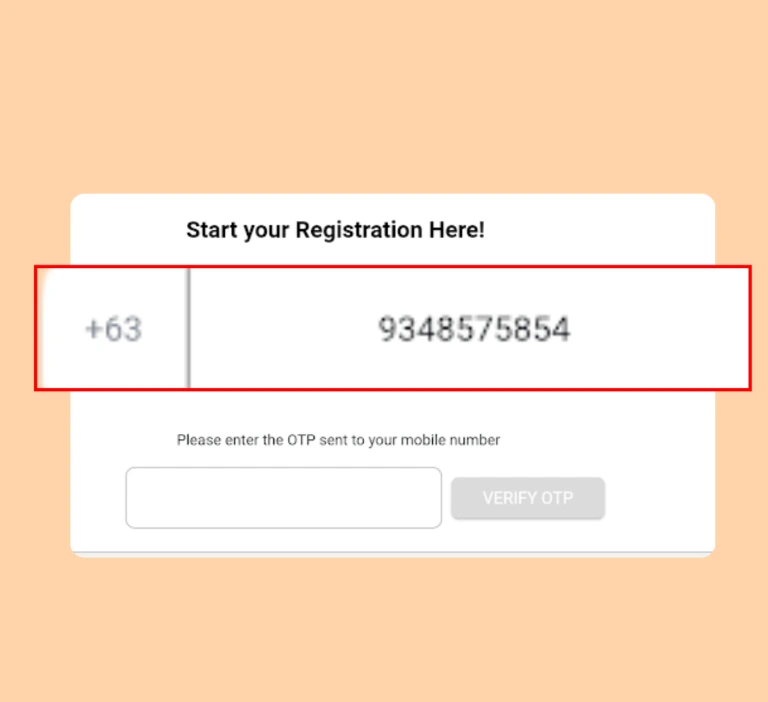
Step 3: Verify Your OTP
- Wait for the OTP sent to your TNT number. Enter the code and click “Verify OTP.”
- If you don’t receive the code, use “Resend OTP” when available.
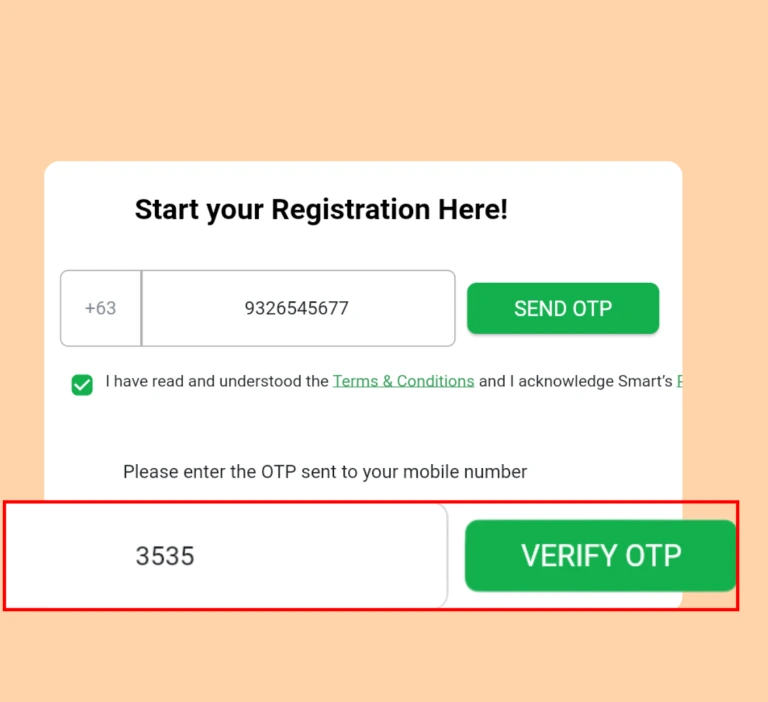
Once your number is verified, tap OK to continue.
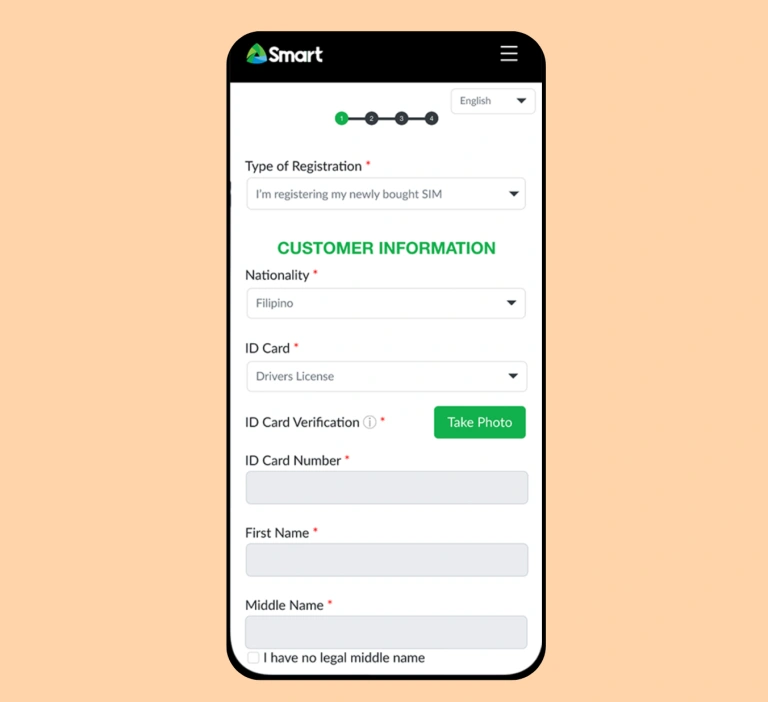
Step 4: Complete Your Registration Details
- Complete the Customer Information Form, including your registration type and nationality.
- Choose whether you are registering a new or existing SIM, then select your nationality and provide the required personal information.
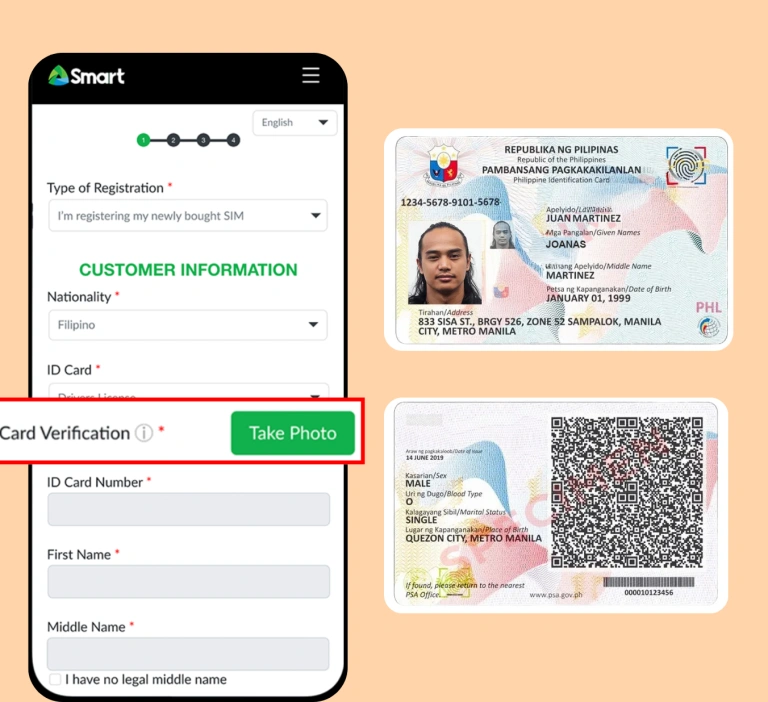
Step 5: Verify Your Identity
- Upload a clear image of your valid ID as requested by the portal. Make sure the ID is readable and not expired.
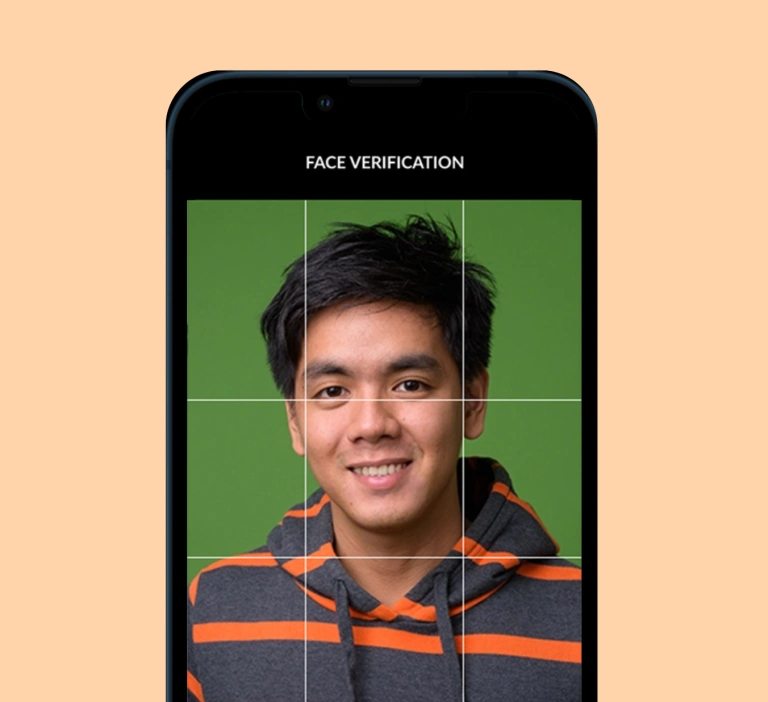
- Then follow the on-screen instructions to take a live selfie. Your face should be clearly visible and match your ID photo.
Step 6: Enter and Review Your Information
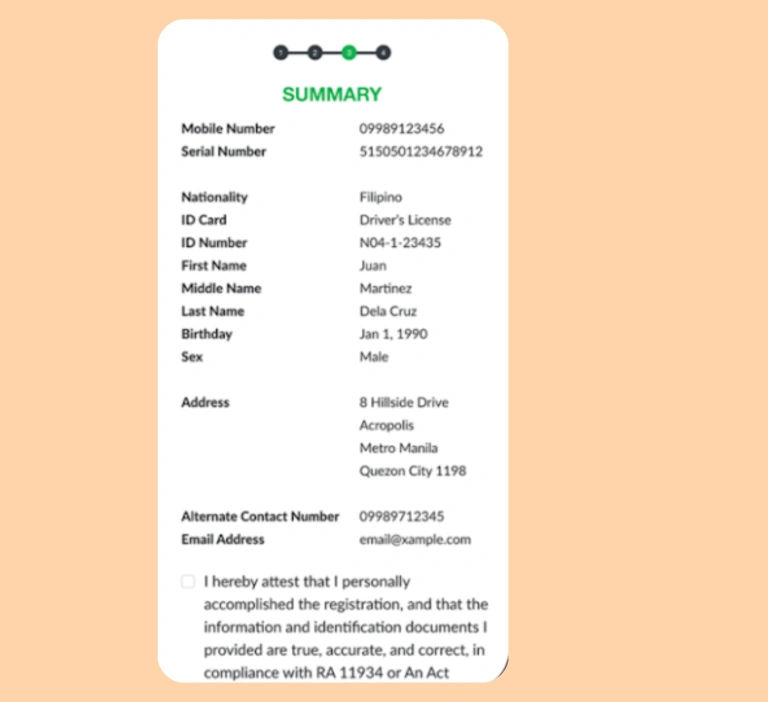
- Enter the required details, such as your name, date of birth, gender, contact number, and address.
- Review the information carefully before continuing. You may also provide alternate contact information if requested.
Step 7: Submit Your Registration
Review the final summary, tick the confirmation box, and tap Submit.
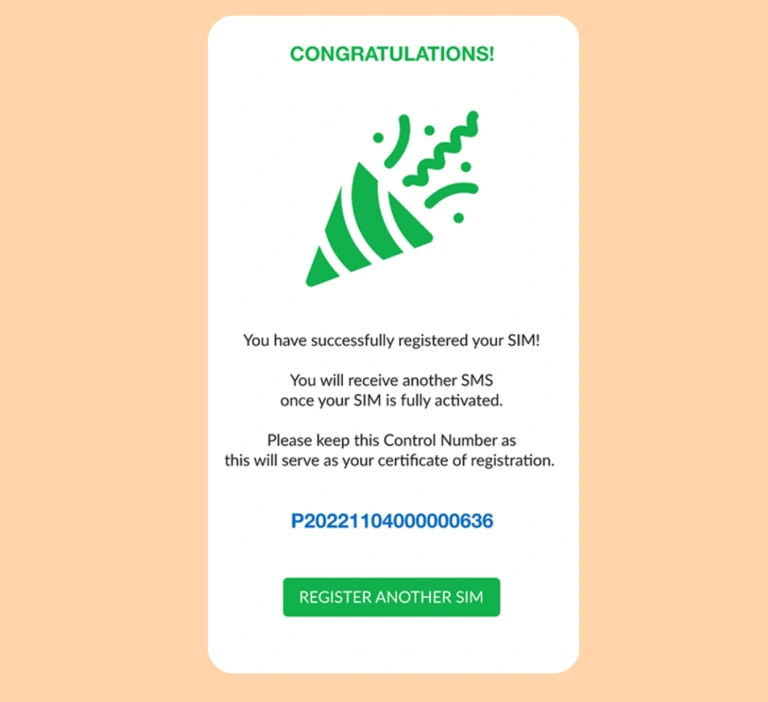
After successful submission, a “Congratulations” message will confirm that your TNT SIM has been registered.
2 Register via Smart App (formerly GigaLife)
Registering your TNT SIM is quick and easy with the Smart App (formerly GigaLife). Follow these steps and finish SIM TNT registration in minutes. Make sure your SIM is inserted and your phone has internet. You can also register a TNT SIM through the Smart App (formerly GigaLife), where the SIM registration option is available.
Step 1 — Insert SIM and open the app
- Insert the TNT SIM into your phone.
- Open the Smart App (formerly GigaLife).
- Make sure you are connected to mobile data or Wi-Fi.
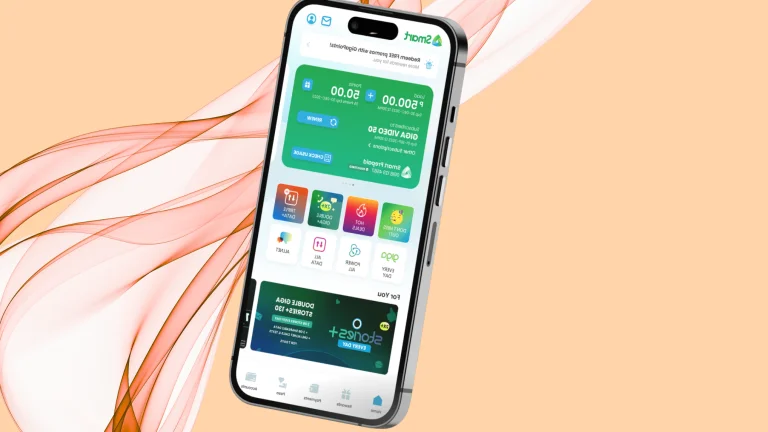
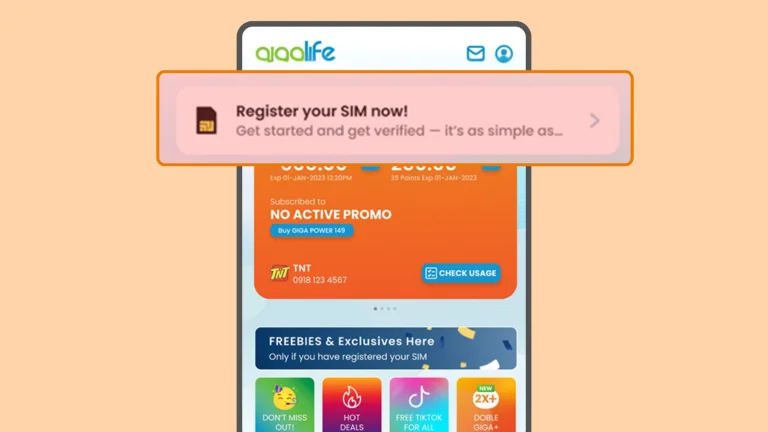
Step 2 — Tap “Register Your SIM”
- In the app, find and tap the “Register Your SIM NOW!.”
- This opens the TNT SIM registration form.
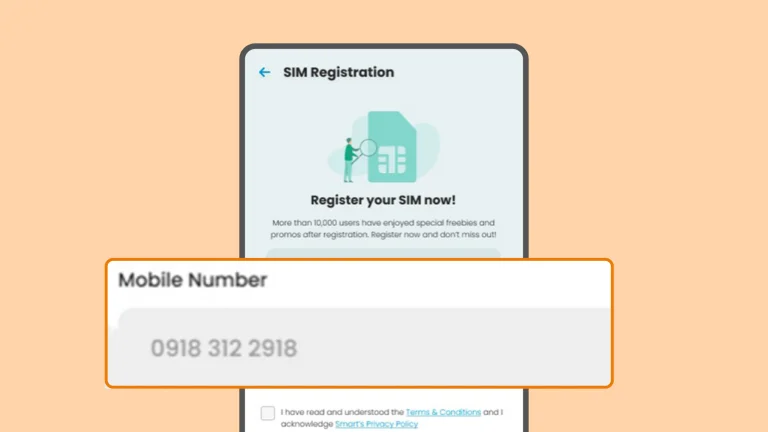
Step 3 — Enter your mobile number
- Type the TNT mobile number you want to register.
- Double-check the number for mistakes.
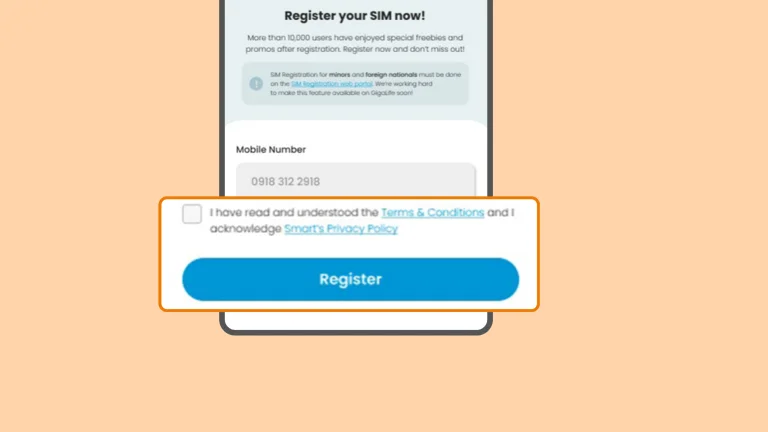
Step 4 — Read and agree to terms
- Read the Terms and Conditions and Privacy Notice.
- Tick the checkbox to agree. This is required.
- Tap Register.
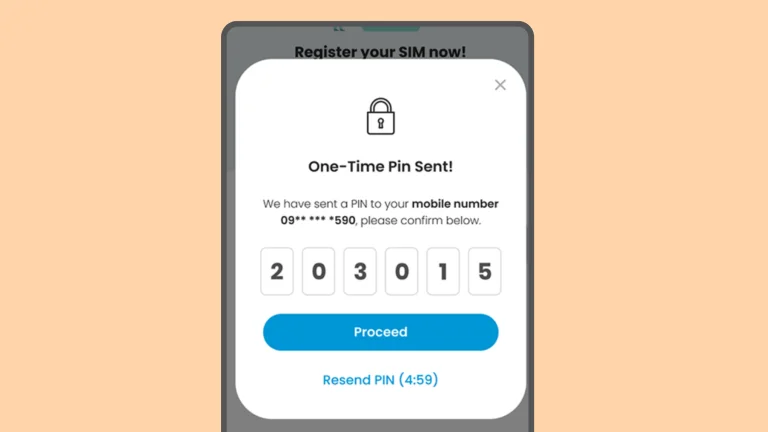
Step 5 — Send and enter OTP
- Wait a few seconds for the OTP (one-time password) to arrive.
- Enter the OTP into the app.
- Tap Proceed.
Tip: If OTP doesn’t arrive, try resending after 30 seconds or check your signal.
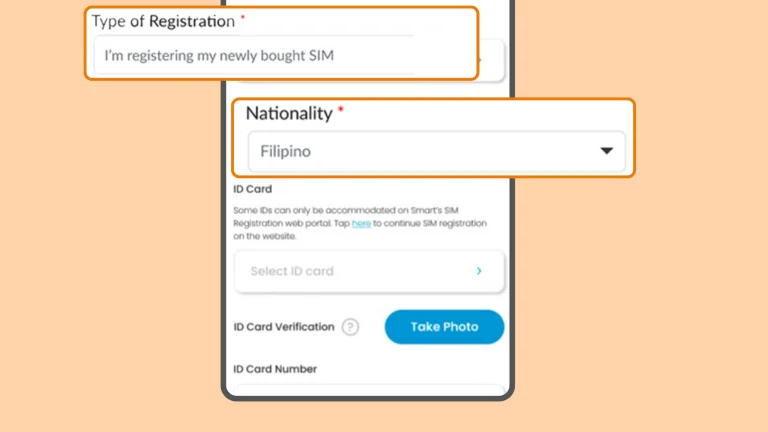
Step 6 — Choose registration type and ID
- Select the registration type (like individual).
- Choose your nationality.
- Pick the valid ID you will submit (e.g., passport, driver’s license, national ID).
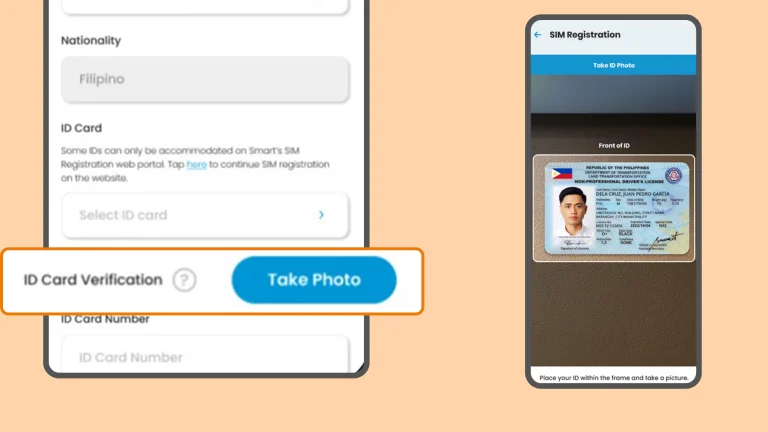
Step 7 — Upload ID photo
- Tap Take a Photo or Upload.
- Take a clear, well-lit picture of your ID.
- Make sure all details are readable.
Tip: Remove glare. Hold the ID steady.
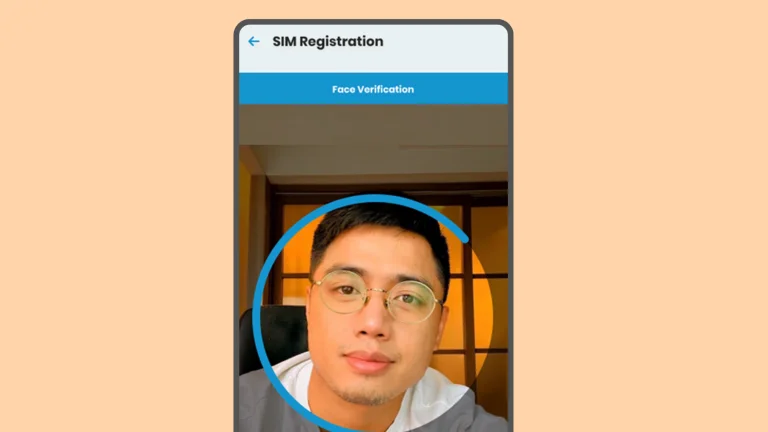
Step 8 — Take a selfie
- Follow the app prompt to take a selfie.
- Match your face to the ID photo.
- Make sure your face is clear and centered.
- If the scan is successful, tap OK to proceed.
- If not, retake the photo.
Step 9 — Confirm your personal information
- Carefully review the information shown.
- Correct any errors before proceeding.
- Tap Next when everything is correct.

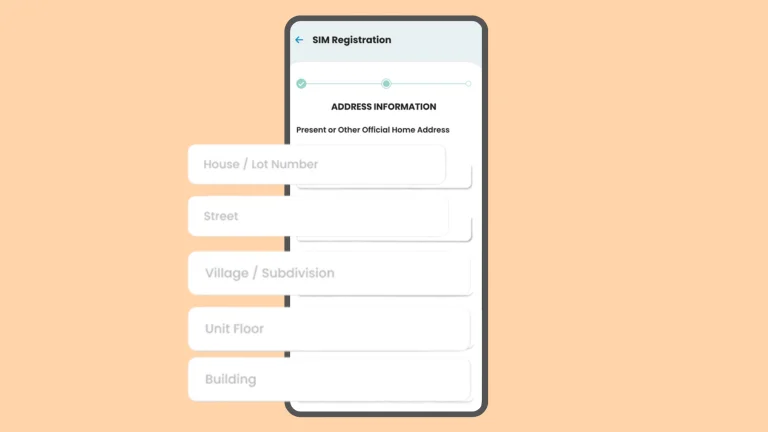
Step 10 — Enter your address
- Fill your present or official home address.
- Include house/lot number, street, province, city, barangay, and ZIP code.
- Add optional details if needed.
- Tap Next.
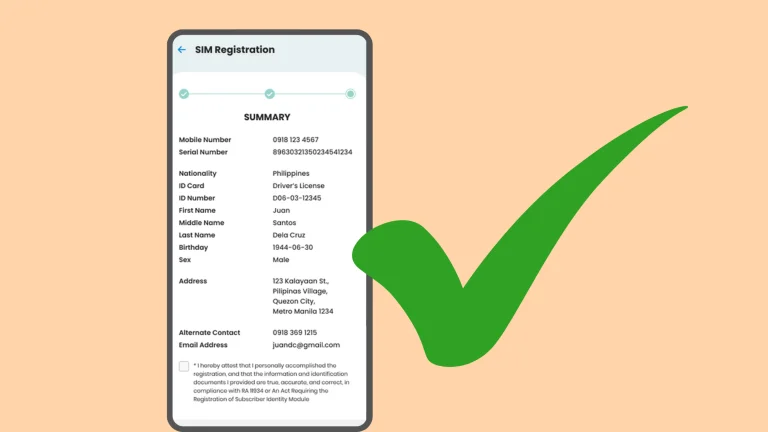
Step 11 — Final review and submit
- Read the final summary on screen.
- Tick the confirmation box.
- Tap Submit.
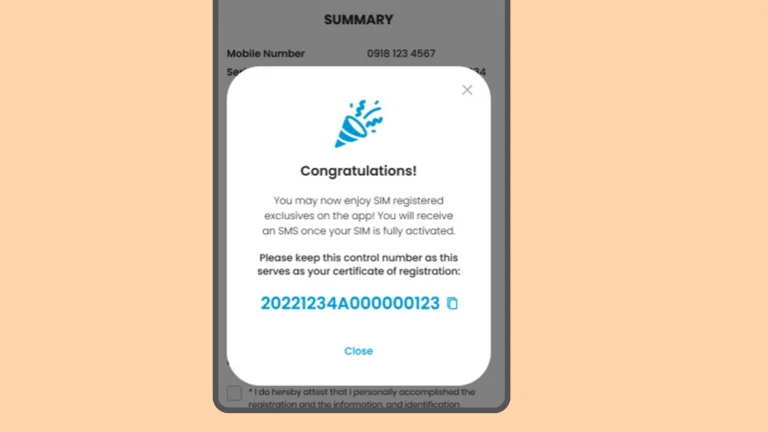
Step 12 — Success message
- You will see a “Congratulations” message.
- Your TNT SIM is now registered.
3 Register Your TNT SIM at a Store
If you cannot complete the registration online, you can visit a Smart Store or authorized registration assistance location and ask about TNT SIM registration. Bring your valid ID and follow the instructions provided by the staff.
Note
Most searched help
Get connected faster.
These are the practical guides a TNT SIM user is most likely to need.








Can Foreigners Register a TNT SIM?
Yes. Foreigners can register a TNT SIM in the Philippines. The requirements may vary depending on whether you are a tourist, resident, student, or worker.
- Tourists: May need a valid passport and required travel or visa documents.
- Foreign residents: May need a passport and documents confirming their authorized stay.
- Foreign students: May need a valid passport and student or visa-related documents.
- Foreign workers: May need a passport and documents related to their legal stay or employment.
Foreign subscribers should provide accurate information and valid documents through the official Smart SIM Registration Portal. Check the portal for the latest requirements before starting your registration.
Can Organizations Register TNT SIMs?
Yes. Government agencies and private organizations can register TNT SIMs under the organization’s name. The requirements are different from those for individual subscribers.
Government entities may need an authorized representative’s valid ID and proof of authorization, while private companies may need business registration documents and identification for their authorized representatives.
If you are registering a TNT SIM for personal use, these organization-specific requirements do not apply. Check the official Smart registration channels for the latest requirements.
Note
The authorized representative is responsible for registering and maintaining the SIM cards issued under the organization’s name.
TNT SIM Registration Requirements for Filipino Subscribers
For individual Filipino registrants, prepare the following information and documents:
Note: The ID options available may depend on the current Smart SIM Registration Portal.
What IDs Are Accepted for TNT SIM Registration?
For individual subscribers, the Smart SIM Registration Portal may accept the following valid IDs:
Make sure your ID is valid, clear, readable, and matches the personal information you enter during registration.
Note: The available ID options may vary depending on the current Smart SIM Registration Portal. Select an ID from the options shown during registration.
TNT SIM Registration Requirements for Foreign Nationals
Foreign nationals must provide the required personal information and supporting documents when registering a TNT SIM through the official Smart SIM Registration Portal.
The registration may require:
- Mobile number and SIM serial number
- Full name
- Nationality
- Date of birth
- Selfie photo
Foreign Nationals Visiting as Tourists
Tourists may need to provide:
- Valid passport
- Proof of address in the Philippines
- Return ticket or another ticket showing the date and time of departure from the Philippines
Foreign Nationals With Other Types of Visas
Foreign nationals holding other types of visas may need to provide:
- Passport
- Proof of address in the Philippines
- Alien Employment Permit (AEP) issued by the Department of Labor and Employment (DOLE), when applicable
- Alien Certificate of Registration Identity Card (ACR I-Card) issued by the Bureau of Immigration (BI), when applicable
- School Registration Form and Student ID for foreign students, when applicable
- Other relevant supporting documents, depending on the subscriber’s situation
Persons of Concern (POCs)
Persons of Concern may need to provide the type of travel or admission document presented during registration.
Note: A SIM registered by a foreign national visiting the Philippines as a tourist is valid for 30 days and may be automatically deactivated after the validity period expires. The validity may be extended if the tourist provides proof of an approved visa extension.
What Documents Are Required for Government Entities?
Government entities registering TNT SIMs may need to provide:
- Government ID of the authorized representative
- Authorization Letter or Special Power of Attorney (SPA) from the head of the government office
- Official ID of the head of office or duly authorized signatory
- Certificate of Employment or Designation confirming the representative’s position
What Documents Are Required for Private Entities or Corporations?
Private companies and corporations may need to provide:
- Certificate of Registration issued by the Securities and Exchange Commission (SEC)
- Board Resolution or Secretary’s Certificate designating the authorized representative
- Valid ID of the authorized representative
- Valid ID of the company’s signatory or approving officer
- Business Permit or DTI Certificate, when applicable
Note: The authorized representative is responsible for registering and maintaining the SIM cards issued under the entity’s name.
How to Check Your TNT SIM Registration Status
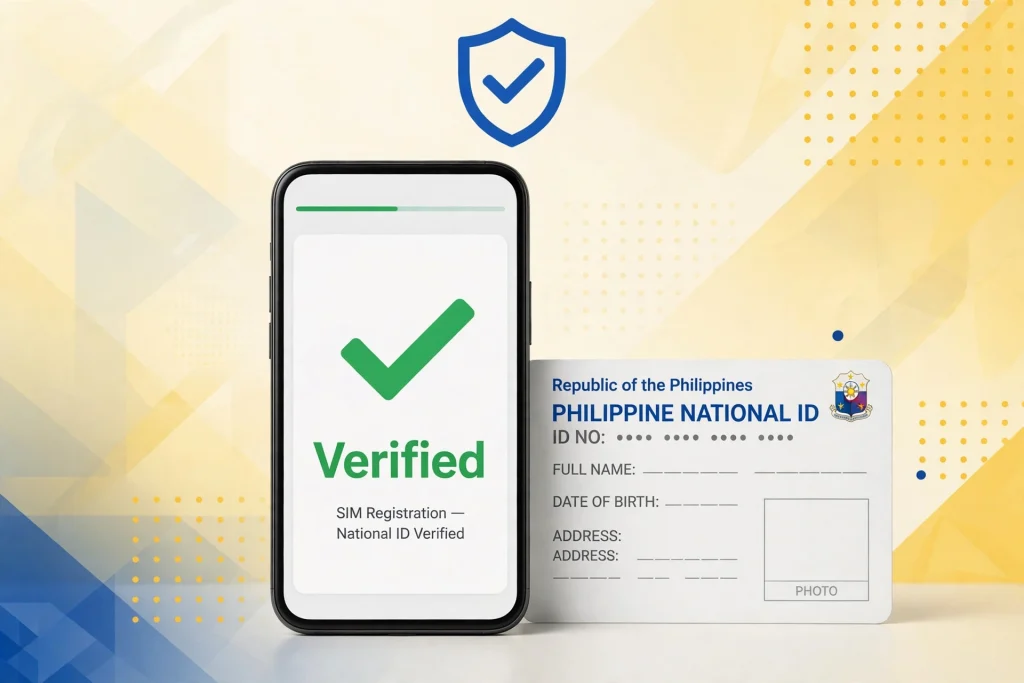
You can check whether your TNT SIM is registered through the available Smart registration channels.
1 Through the Smart App (formerly GigaLife)
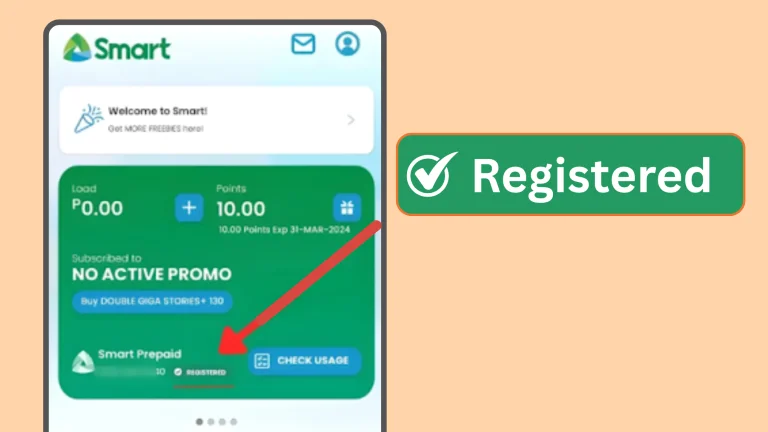
- Open the Smart App (formerly GigaLife) and create an account if you haven’t done so already.
- Once logged in, you’ll see your SIM card registration TNT status displayed — it will indicate whether your SIM is registered or not (as shown in the image below).
2 Through the Registration Portal
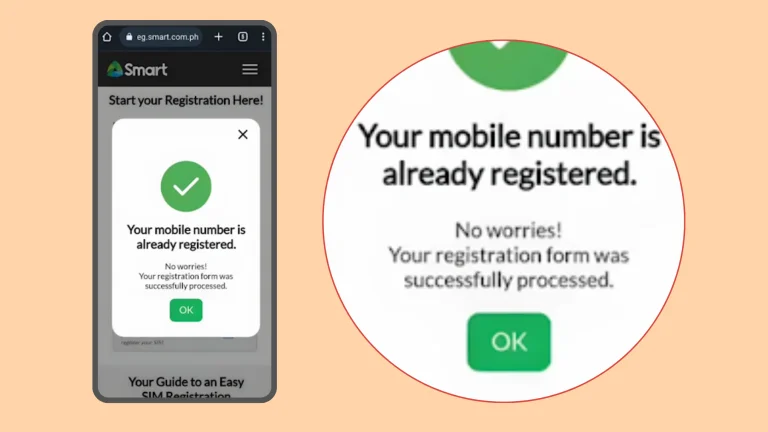
- Go to the Smart SIM Registration Portal using the registration button mentioned above or visit https://simreg.smart.com.ph/.
- Enter your mobile number in the required field.
- If your number is already registered, you’ll see a message saying “Your number is already registered.”
- If your number is not yet registered, you’ll be redirected to continue the registration process.
Registration Issues: Fixes & Solutions
If you encounter an error during registration, try the following solutions.
Frequently Asked Questions
Below are the frequently asked questions about the SIM Registration Smart TNT.
Final Words
Registering your TNT SIM keeps your number compliant with Philippine SIM registration requirements and helps you continue using TNT mobile services. For online registration, use the official Smart SIM Registration Portal and make sure your personal information and ID details are accurate before submitting the form.

Need Help
The hotline can provide assistance, but SIM registration itself must be completed through the available official registration channels.
Call to a Hotline at (02) 8888 1111 or *888